Creator guide
Publish your first slot theme
The Creator Studio at marketplace.spinloo.com takes you from theme details to a published slot theme in six steps. This guide lists the files to prepare, shows each screen, and explains what each step needs before it lets you continue.
Screenshots show the studio filled in with example data: a theme called Golden Classics, built from Spinloo's default symbols and sounds. Themes play with virtual credits, which have no cash value.
On this page
Before you start
The wizard does not save drafts, and each step stays locked until the one before it is complete. Gather these files before you open it:
- A cover image: PNG in a 16:9 shape. The studio suggests keeping it under 1 MB.
- Four special symbols as PNG files: Wild, Bonus, Dream Spin and Bingo Ball.
- Between 9 and 14 standard symbols as PNG files.
- Two MP4 animations, one for the Spin Bonus and one for the Dream Wheel.
- Nine MP3 sound effects, one per game event: spin start, reel stop, small win, medium win, big win, jackpot win, bonus trigger, dream trigger and wild land. The studio suggests keeping each under 500 KB.
- A plan for five reel strips and a paytable. Steps 3 and 4 below explain both.
Each upload must be a PNG, MP4 or MP3 file of 10 MB or less. The marketplace checks what the file actually contains, so renaming a file to a different extension will not get it accepted.
Find your way around
The links at the top of every marketplace page lead to four places:
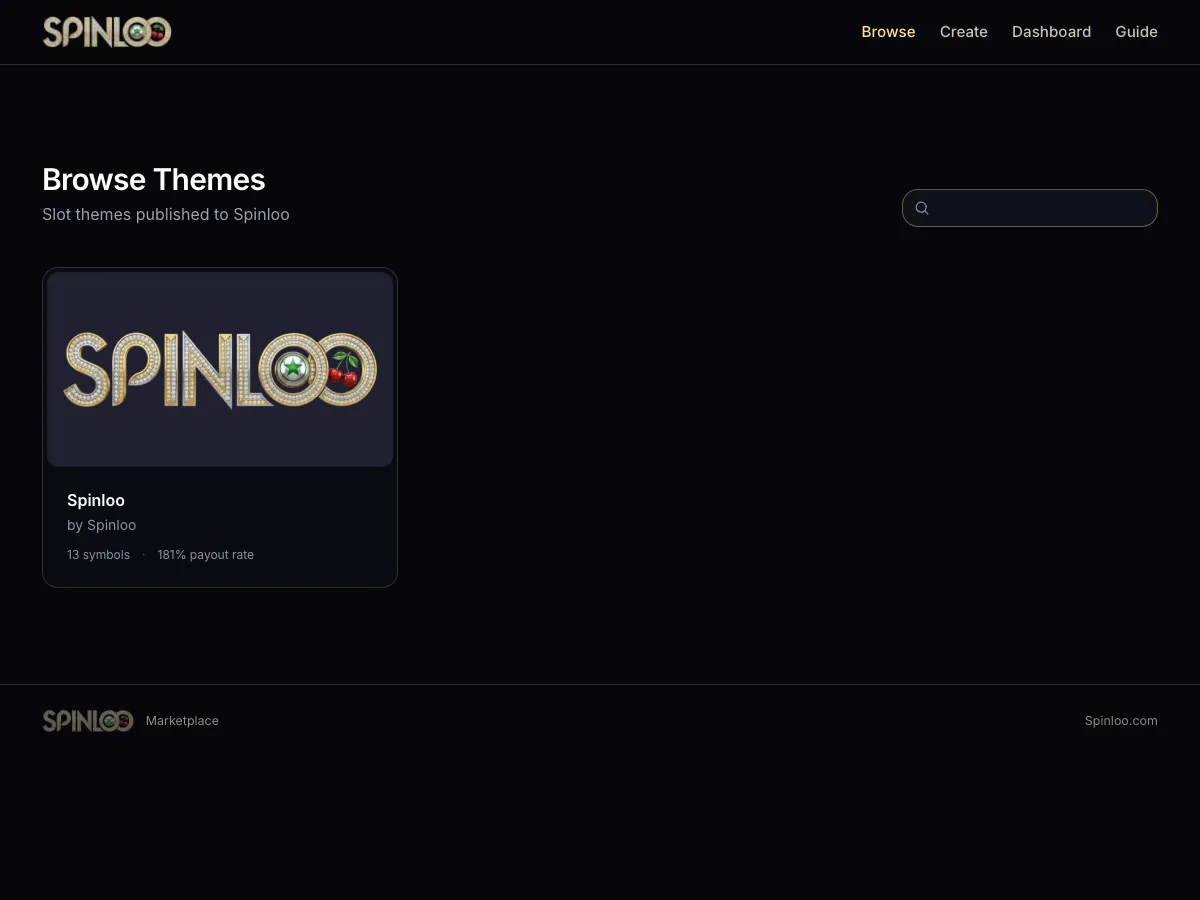
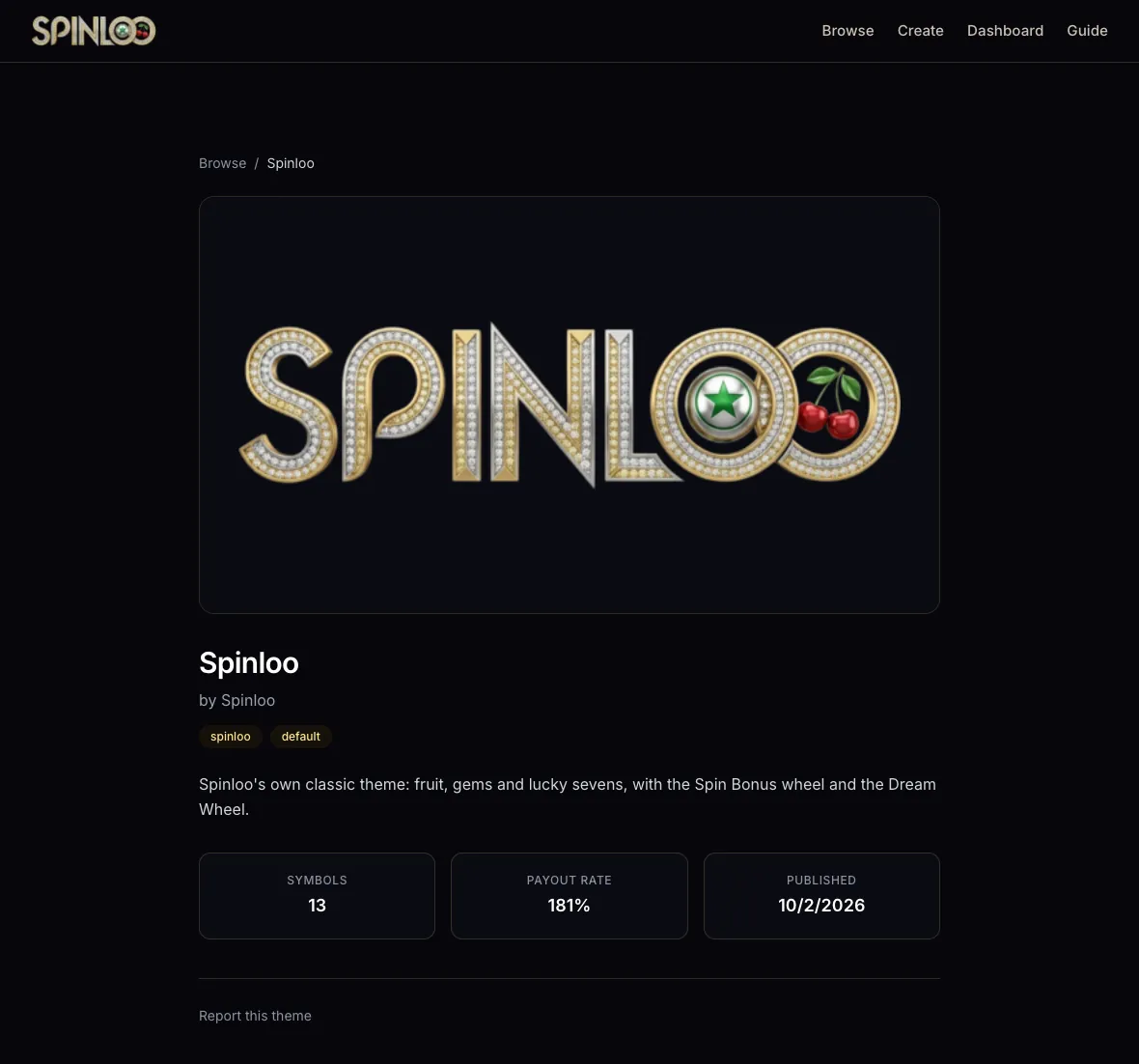
- Browse lists published themes. Open one to see its cover, symbol count, RTP and publish date.
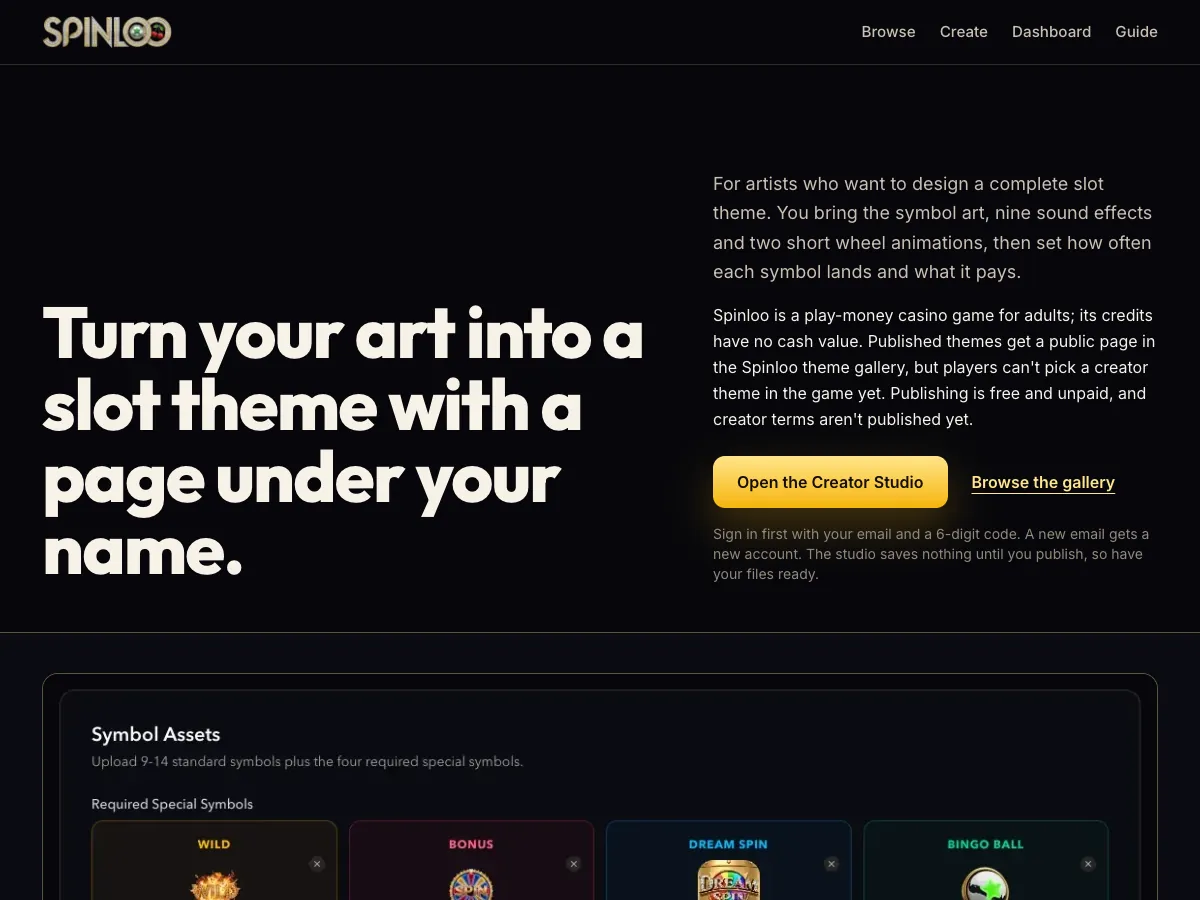
- Create opens the six-step wizard.
- Dashboard shows your published themes with their status and play counts. You also sign in here.
- Guide brings you back to this page.
Sign in first
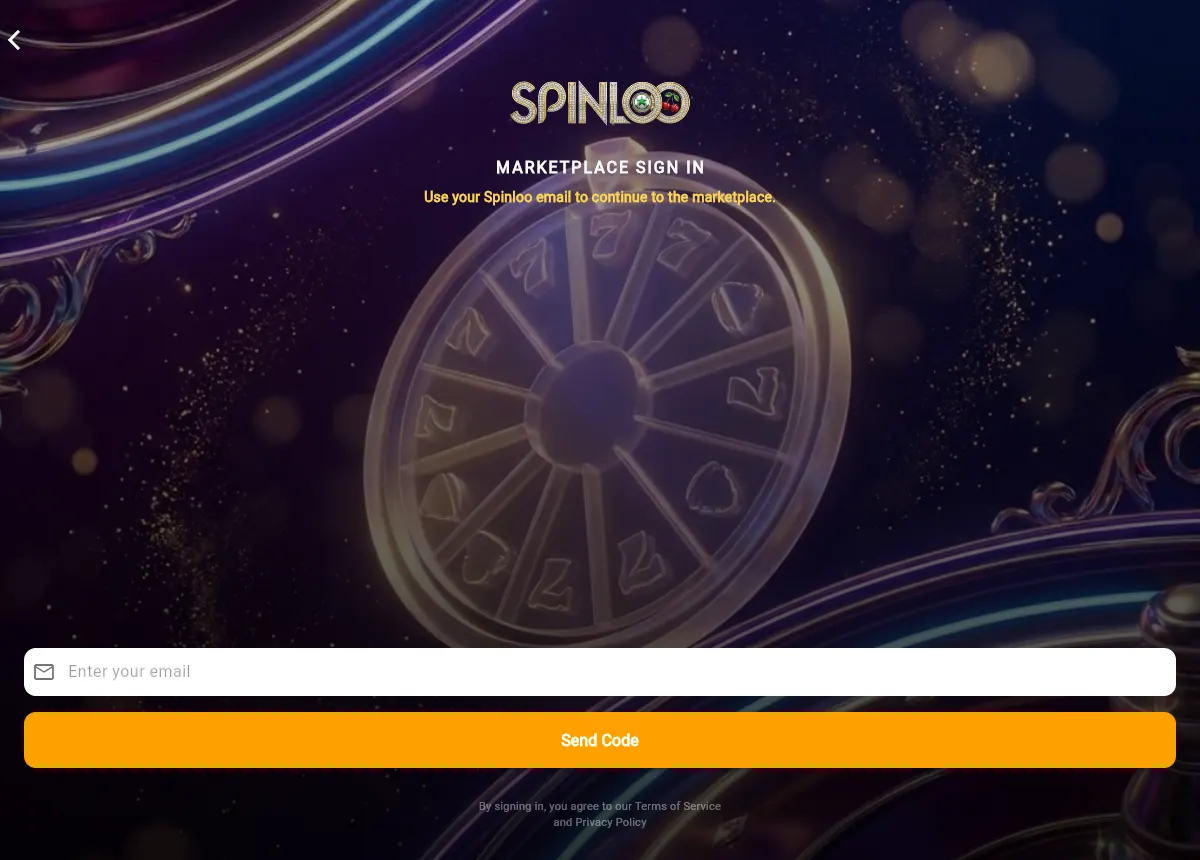
Every upload is tied to your Spinloo account, so sign in before you start the wizard. Open Dashboard and choose Sign In. Enter your email address, then type the 6-digit code Spinloo emails you. You return to the marketplace signed in.
If you start the wizard signed out, the cover upload in step 1 fails with "Sign in before uploading assets."
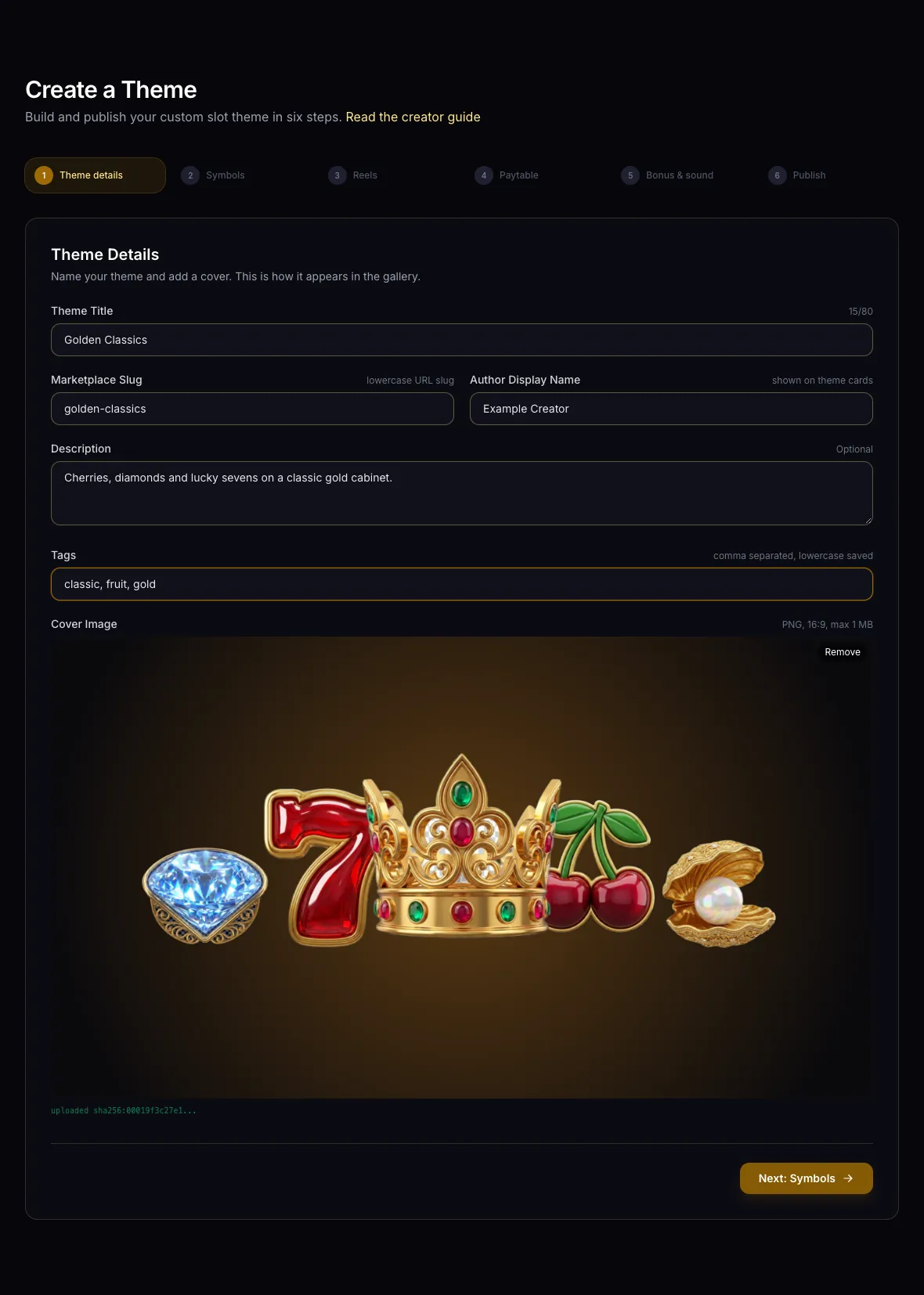
Step 1: Theme details
- Theme Title is required, up to 80 characters.
- Marketplace Slug fills in from the title. It allows lowercase letters, numbers and hyphens, up to 64 characters. The slug is your theme's permanent ID and appears in its web address.
- Author Display Name is required and appears on your theme cards.
- Description and Tags are optional. Separate tags with commas; they are saved in lowercase.
- Cover Image: after you choose the file, wait for the "uploaded sha256" line under the preview. It confirms the upload finished.
Next: Symbols unlocks once the title, slug, author name and cover are in place.
Step 2: Symbols
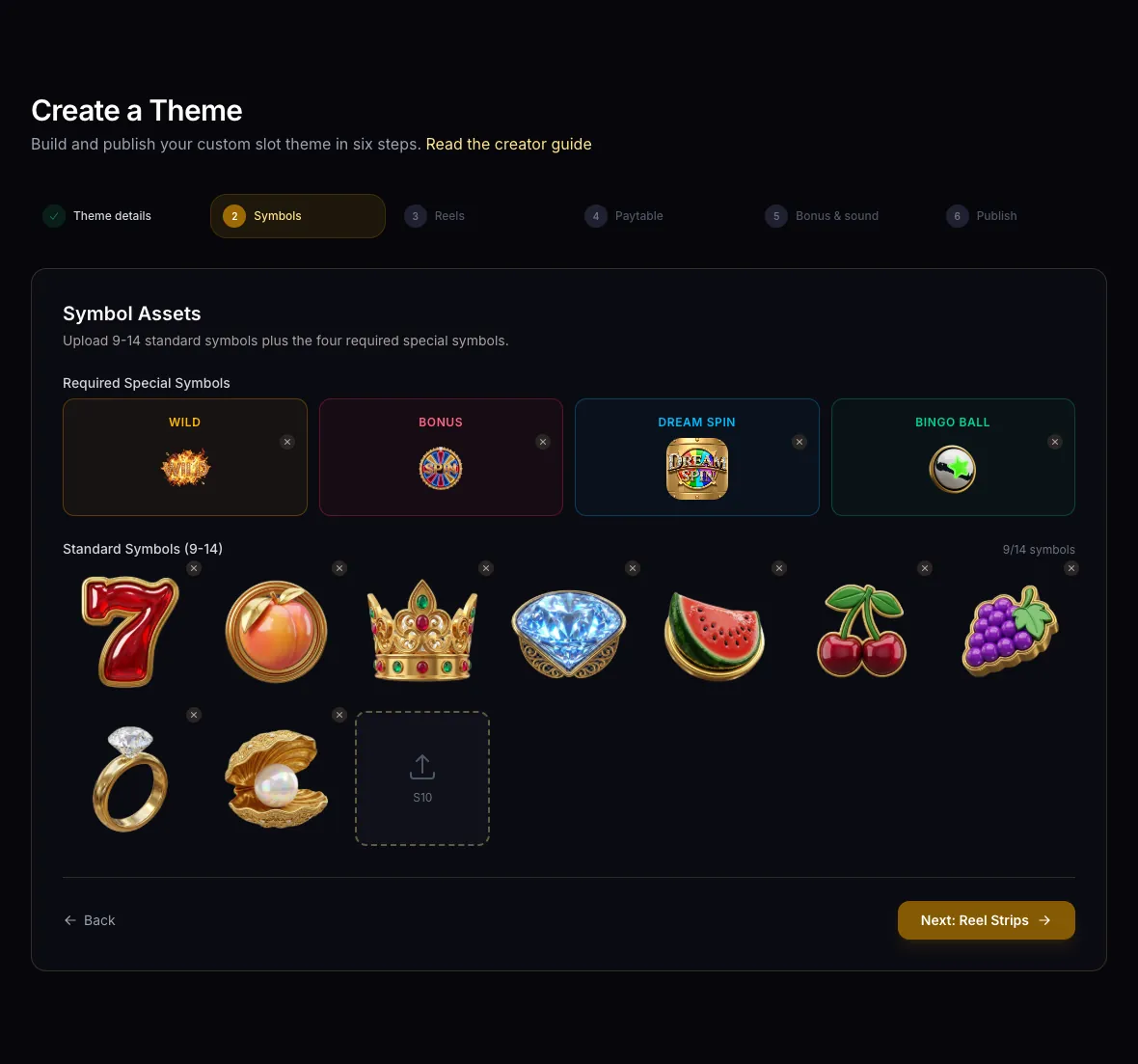
Upload the four special symbols in the top row, then 9 to 14 standard symbols below them.
- Wild substitutes for standard symbols.
- Bonus triggers the Spin Bonus wheel.
- Dream Spin triggers the Dream Wheel.
- Bingo Ball counts toward bingo wherever it lands and pays no slot credits.
The studio names your standard symbols standard_1, standard_2 and so on, in upload order. You will use these names in the next two steps. To replace a symbol, remove it with the × on its corner and upload the new file.
Step 3: Reel strips
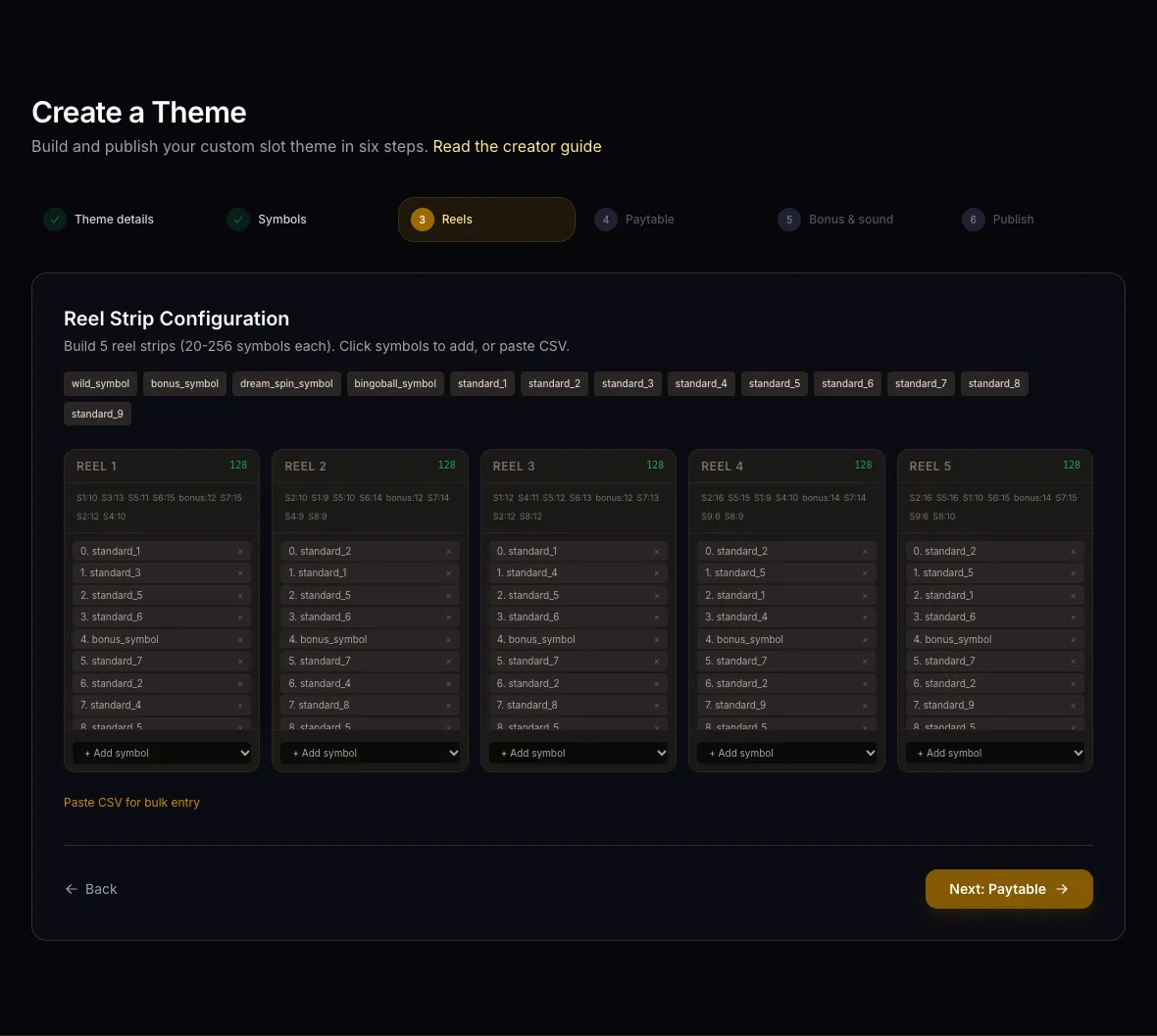
Each of the five reels is a strip of 20 to 256 symbols. The more often a symbol appears on a strip, the more often it lands, which also changes how much the theme pays out.
- Use + Add symbol under a reel to add one symbol at a time. The × next to an entry removes it.
- For long strips, choose Paste CSV for bulk entry. Paste symbol names separated by commas or line breaks into the box for that reel, then click outside the box. The list replaces the reel only when it holds at least 20 valid names; names the studio does not recognize are skipped.
- The count in each reel's header turns green when the reel reaches 20 symbols.
Step 4: Paytable and RTP
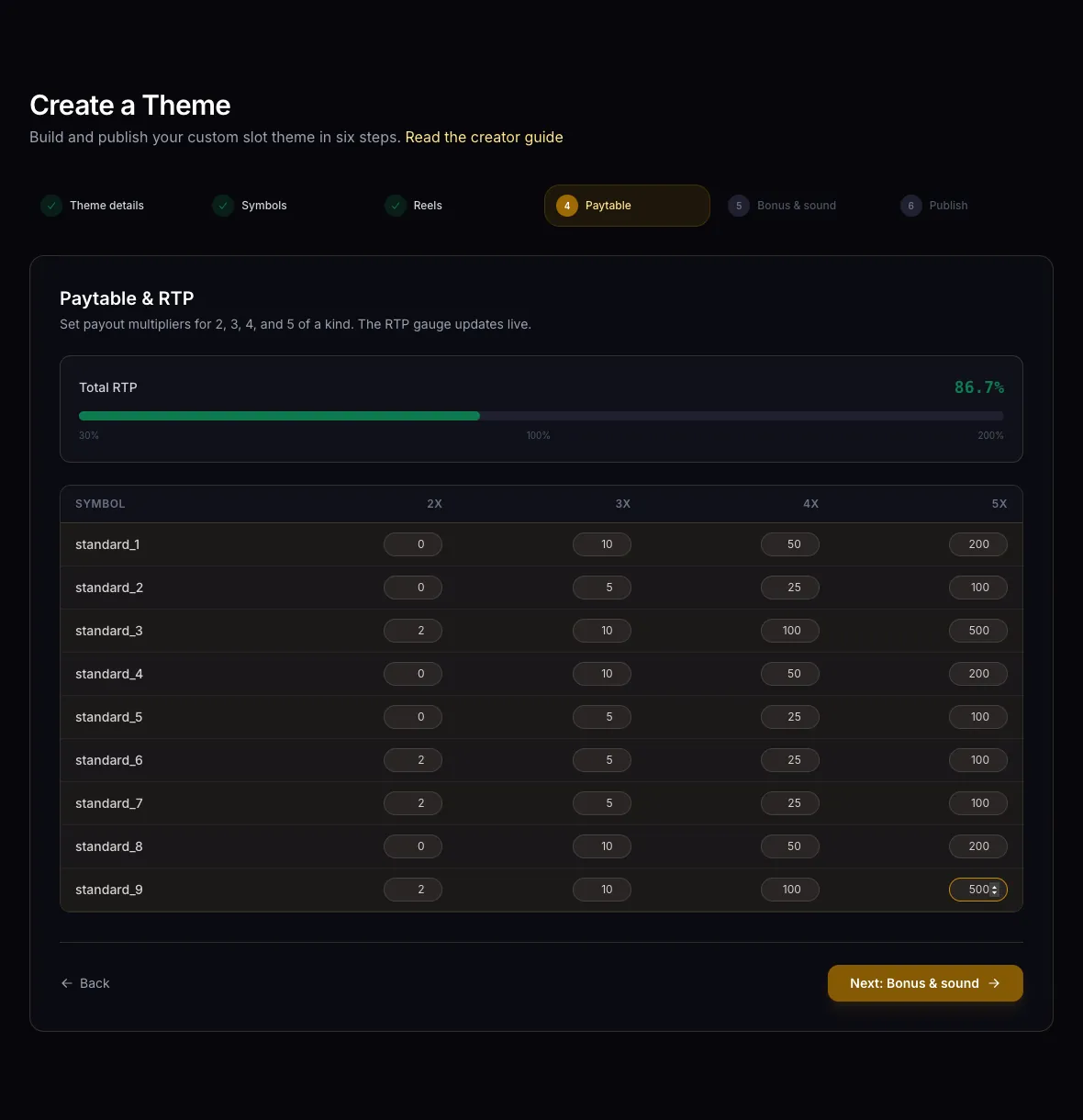
For each standard symbol, enter the multiplier it pays for 2, 3, 4 and 5 of a kind. Fill in every cell in the 3x, 4x and 5x columns. A cell counts once you type into it, even when the value is 0.
The RTP (return to player) gauge shows the share of credits the theme returns to players over many spins. Next stays locked until the gauge reads between 30% and 200%. To raise RTP, increase multipliers or put high-paying symbols on more reel positions. To lower it, do the opposite.
The gauge counts line wins only. The final check in step 6 adds both bonus wheels, so your final RTP is usually higher. The example reads 86.7% here and 165.4% at review.
Step 5: Bonus games and sound
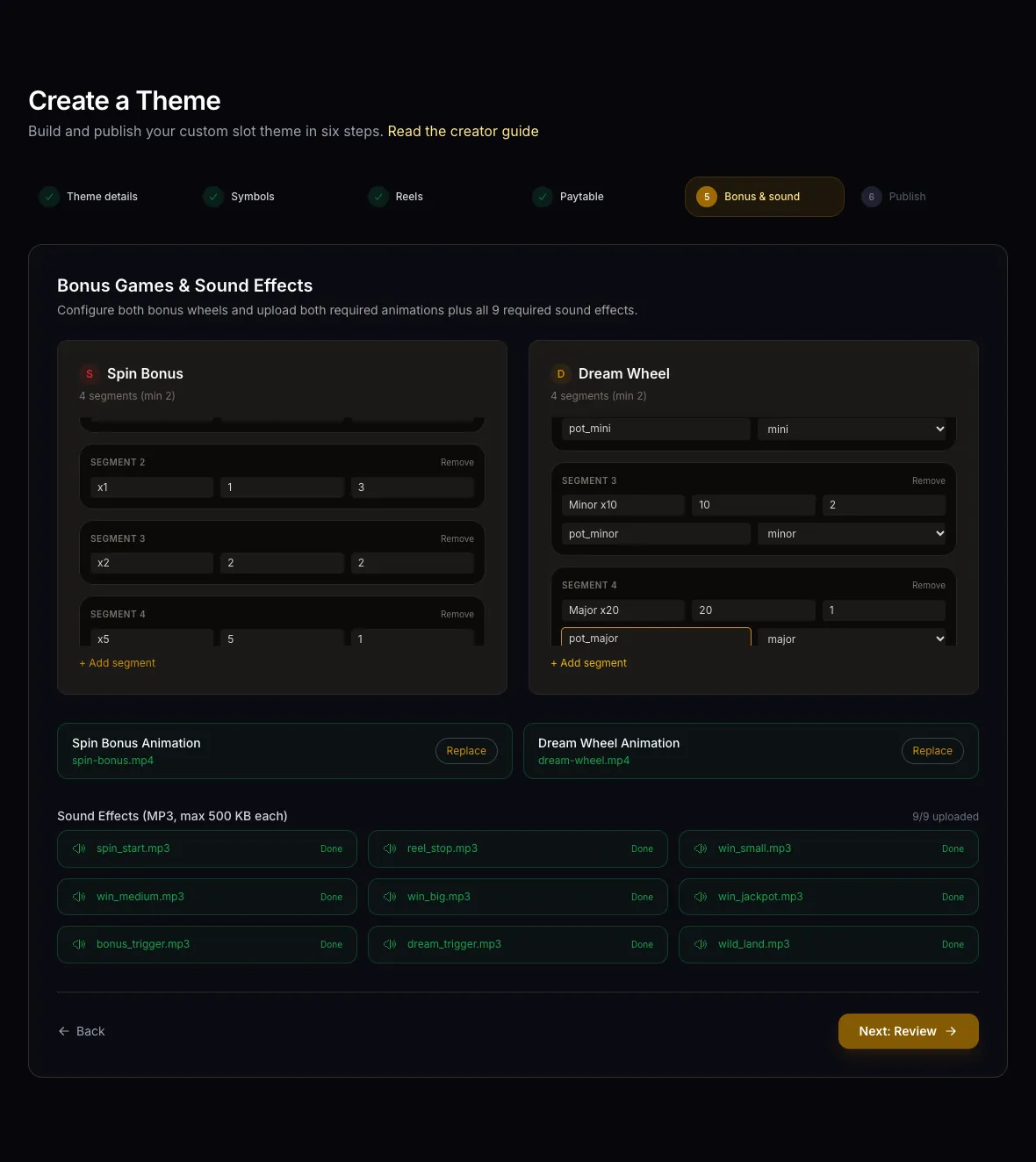
Both bonus wheels need at least two segments. Choose + Add segment under a wheel. Each segment has three boxes, from left to right:
- Label: the text shown on the wheel, up to 40 characters, starting with a letter or number.
- Multiplier: a whole number, 0 or higher.
- Weight: a whole number, 1 or higher. A higher weight makes the segment land more often.
Dream Wheel segments also take a pot name and an optional pot tier (mini, minor or major). The tier links that segment to the matching Spinloo jackpot.
Below the wheels, upload one MP4 animation per wheel and an MP3 file for each of the nine sound events. A row turns green when its file has uploaded.
Step 6: Review and publish
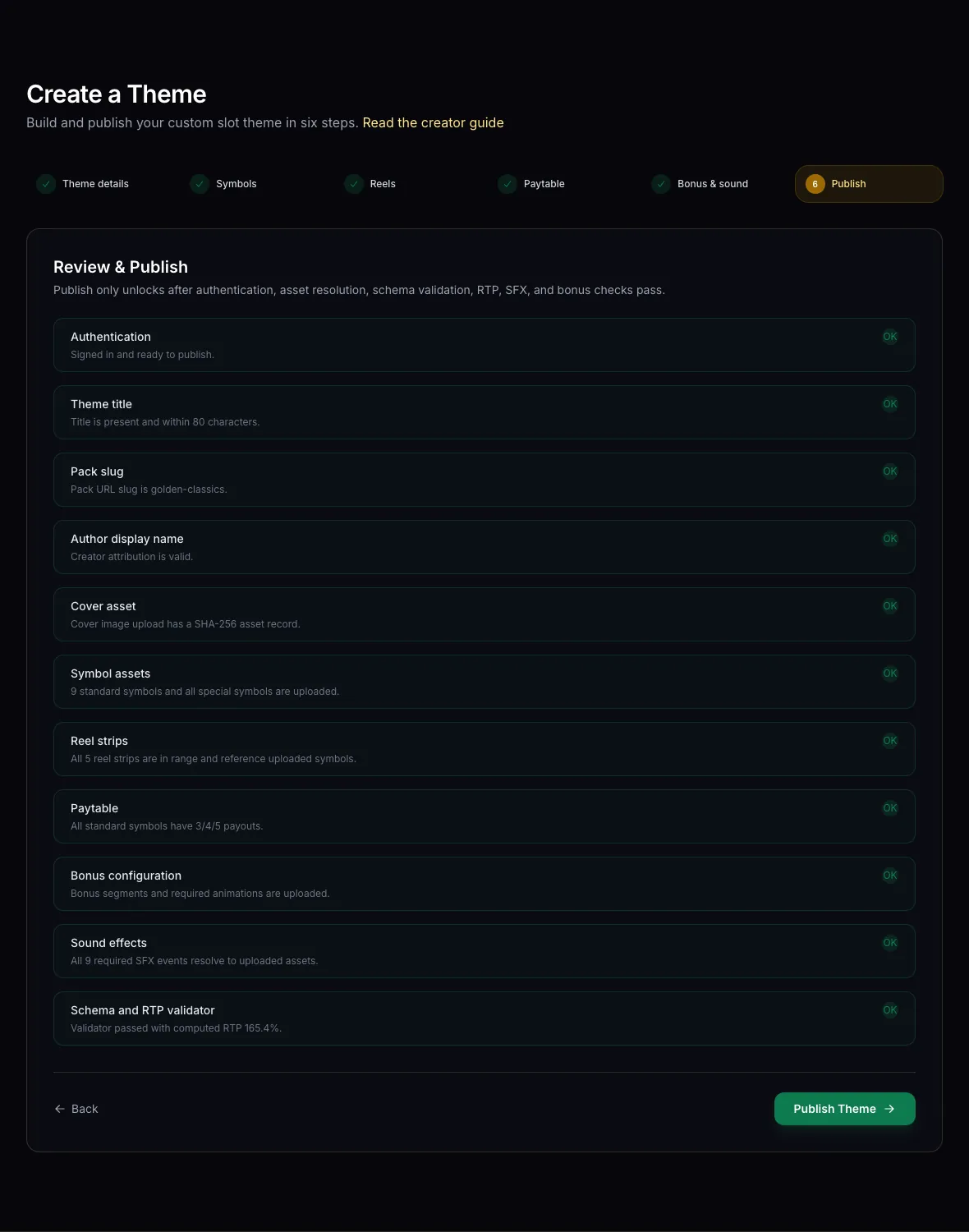
The review runs eleven checks: sign-in, title, slug, author name, cover, symbols, reel strips, paytable, bonus setup, sound effects, and a final validation of the whole theme, including its total RTP. A failed check says what to fix. Use Back, or the step buttons at the top, to return to that step. Your entries stay in place as long as the tab stays open.
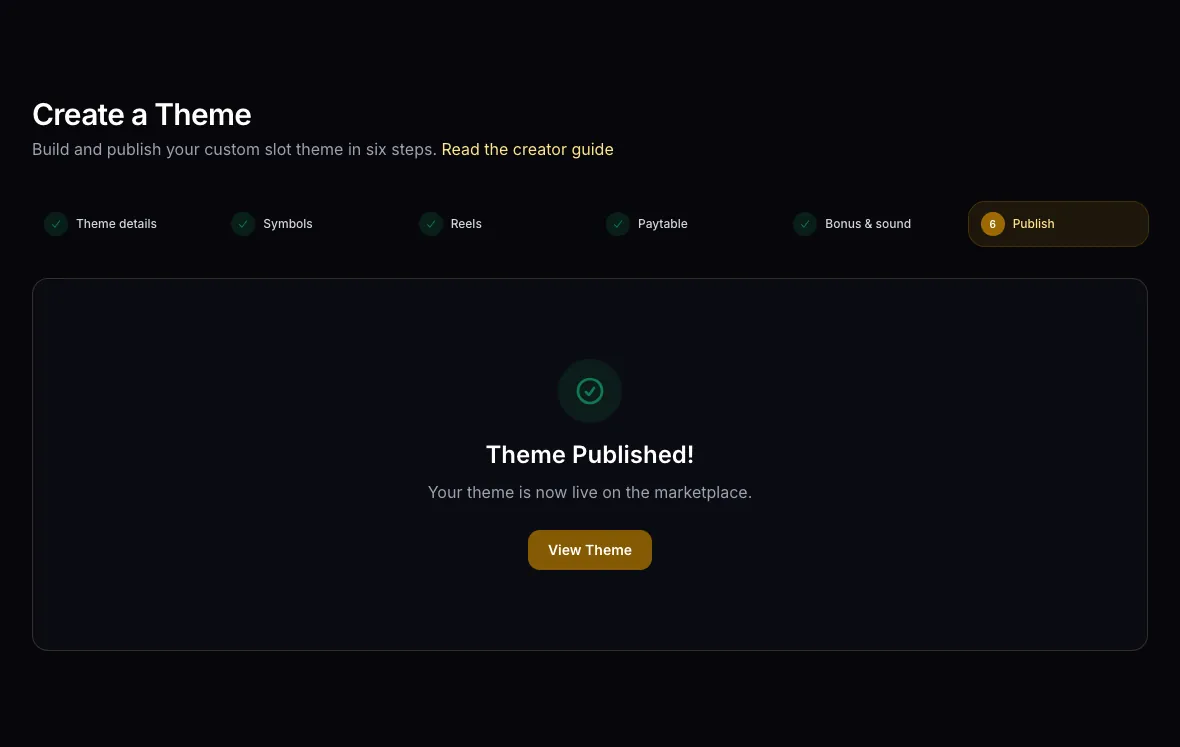
When every check shows OK, choose Publish Theme. The marketplace signs your theme so the game can detect any tampering, then lists it in Browse.
After you publish
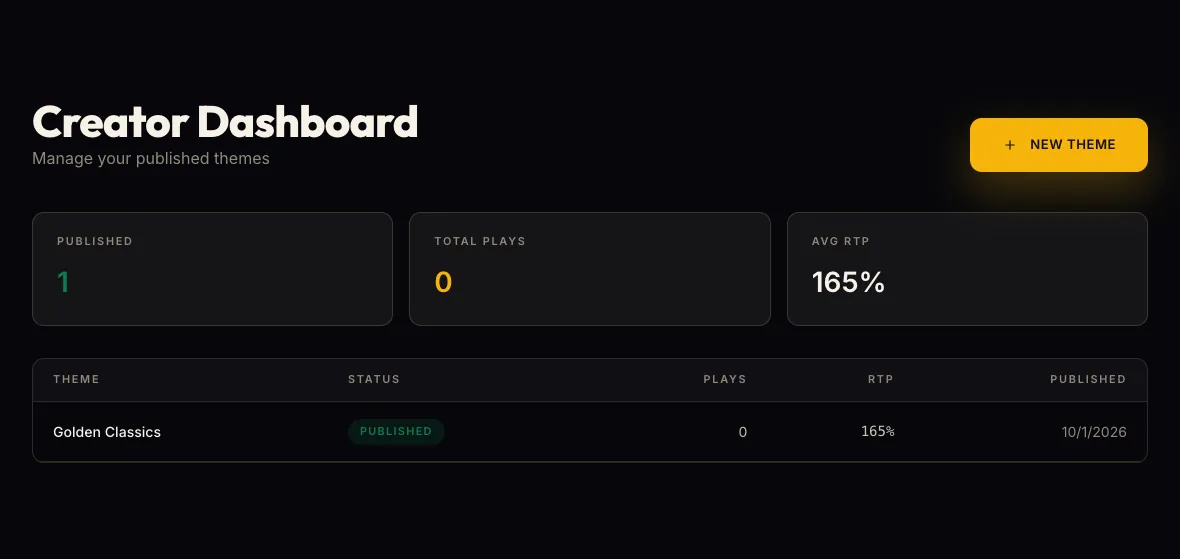
Your theme appears on your Dashboard with its status, plays, RTP and publish date.
Update a theme
Run the wizard again with the same slug and publish. The new version replaces the old one in Browse right away. Only you can publish to your slug, and you can't take a published theme down yourself.
Reports and takedowns
Anyone signed in can report a theme. Spinloo admins review reports and can take a theme down, and your Dashboard then lists it as taken-down.
Where players see your theme
Published themes appear in Browse. In the game, a host can open a room with your theme, and that host's friends can pick the room and play it.
Fix common problems
- The Next button stays grey. A required field or file is missing. Compare the step with its section above.
- "Sign in before uploading assets." Sign in from the Dashboard, then start the wizard again.
- An upload fails. Use a real PNG, MP4 or MP3 file of 10 MB or less.
- The RTP gauge is red. Adjust multipliers or reel strips until it reads between 30% and 200%. If step 6 reports a total above 200%, lower the high bonus multipliers or their weights.
- Publishing fails. One cause is a slug another creator already uses. Go back to step 1 and choose a different slug.
- Your entries disappeared. The wizard keeps entries only while the tab is open. Reloading or leaving the page clears them.